
Managing local administrator accounts across an enterprise fleet has historically been an IT headache. Hardcoded passwords across multiple images create a massive lateral movement risk, while allowing end-users to remain local admins opens the door to complete device compromise.
Windows LAPS (Local Administrator Password Solution) directly natively resolves this by automatically generating, rotating, and backing up unique local administrator passwords securely to the cloud.
This guide details how to implement a pure cloud-native Windows LAPS policy using Microsoft Intune and Microsoft Entra ID.
Prerequisites#
Before starting your rollout, verify that your environment satisfies the following minimum baseline constraints:
- Licensing: Microsoft Entra ID Free (or higher) alongside an active Microsoft Intune license.
- Device Status: Devices must be Microsoft Entra Joined or Hybrid Joined. (Entra registered devices are not supported).
- Supported OS: Windows 10/11 (Modern versions include the native LAPS engine directly baked into the OS core).
Step 1: Turn On LAPS in Microsoft Entra ID#
Before Intune can escrow local passwords safely, your Entra ID tenant must be configured to receive them.
- Navigate to the Microsoft Entra Admin Center.
- Expand Identity > Devices > All Devices > Device Settings.
- Locate the setting Enable Microsoft Entra Local Administrator Password Solution (LAPS) and toggle it to Yes.
- Click Save.
Step 2: Configure the Intune LAPS Profile#
With tenant-side backing established, create the client enforcement layout directly via Endpoint Security.
- Open the Microsoft Intune Admin Center.
- Navigate to Endpoint Security > Account Protection.
- Select + Create Policy and apply the following parameters:
- Platform: Windows 10 and later
- Profile: Local admin password solution (Windows LAPS)
- Name the configuration (e.g.,
SEC-WIN-LAPS-Standard) and advance to the settings view.
Recommended Configuration Baseline#
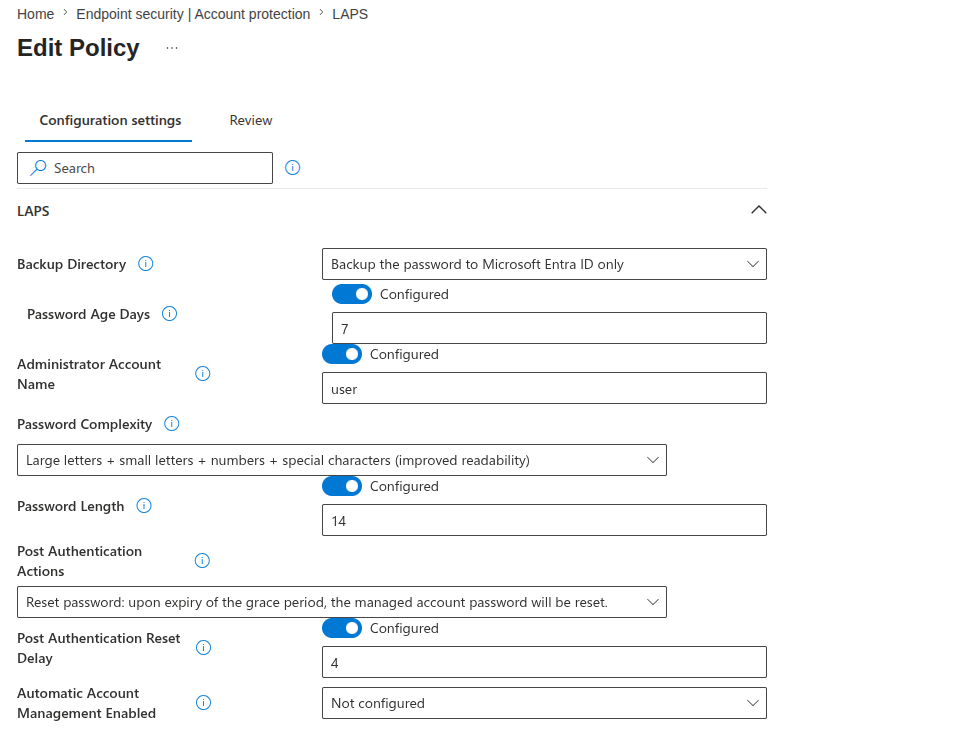
| Policy Setting | Configuration Value | Purpose / Notes |
|---|---|---|
| Backup Directory | Backup the password to Microsoft Entra ID only | Securely escrows the local password assets to cloud identity storage. |
| Password Age Days | 7 | Enforces an aggressive rotation rhythm every 7 days. |
| Administrator Account Name | user | Specifies the targeted local administrator account name. |
| Password Complexity | Large letters + small letters + numbers + special characters (improved readability) | Enforces maximum entropy while using the readable character set. |
| Password Length | 14 | Sets a strong 14-character minimum length boundary. |
| Post Authentication Actions | Reset password: upon expiry of the grace period, the managed account password will be reset. | Forces an automatic background password change cycle after use. |
| Post Authentication Reset Delay | 4 | Grants a 4-hour grace window for administrative remediation actions. |
| Automatic Account Management Enabled | Not configured | Leaves modern native account lifecycle tiering unset. |
Step 2.5: Create the Custom Local User Account via Intune OMA-URI#
Because Windows LAPS requires an existing target user to manage when using a custom identifier (user), we can leverage the built-in Windows Accounts CSP to seamlessly provision the local account and add it to the local Administrators group before LAPS takes ownership.
This is handled by deploying a Custom Configuration Profile in Microsoft Intune using targeted OMA-URI strings.
Creating the Custom Profile#
- Open the Microsoft Intune Admin Center.
- Navigate to Devices > Configuration > Create > New Policy.
- Set the following platform parameters:
- Platform: Windows 10 and later
- Profile type: Templates
- Template name: Custom
- Click Create, and name the profile (e.g.,
LAPS | Create a local admin account on Windows using Intune).
Configuring the OMA-URI Settings#
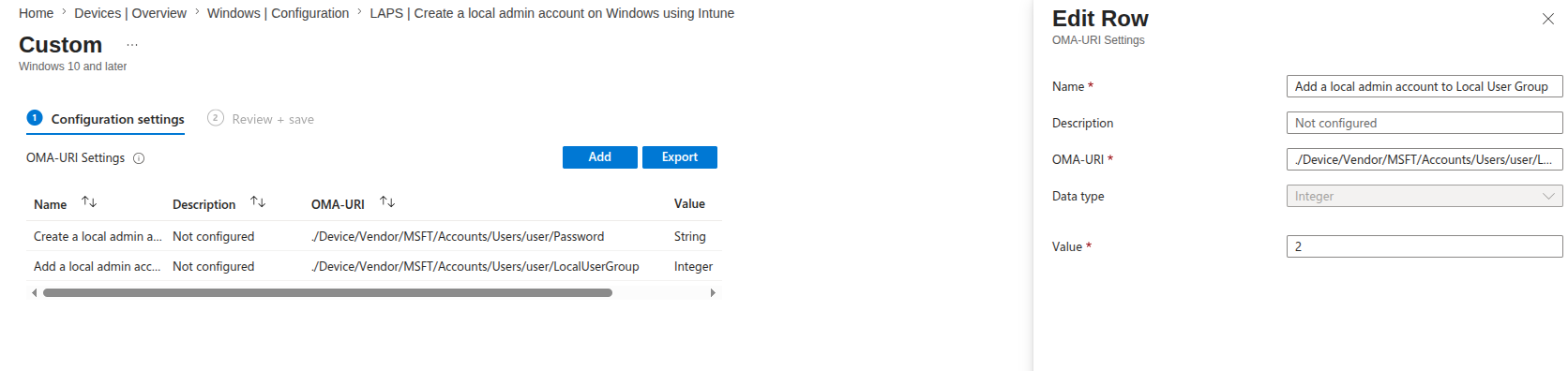
Under the Configuration settings step, click Add to create the following two required rows. These configurations instruct the Windows client engine to spin up the account profile natively:
Row 1: Define the Account and Set an Initial Password#
- Name: Create a local admin account on Windows using Intune
- Description: Provisions the account string shell.
- OMA-URI:
./Device/Vendor/MSFT/Accounts/Users/user/Password - Data type:
String - Value:
nSsnhDSXaF3vyVb7%#XP@fgp(Use a temporary high-entropy baseline string here. LAPS will instantly rotate and securely randomize this string once the device finishes checking in).
Row 2: Add the Account to the Administrators Group#
- Name: Add a local admin account to Local User Group
- Description: Grants local administration context.
- OMA-URI:
./Device/Vendor/MSFT/Accounts/Users/user/LocalUserGroup - Data type:
Integer - Value:
2(The integer value2targets the built-in Local Administrators group natively).
Verification Profile#
-
Create Account Password
- OMA-URI:
./Device/Vendor/MSFT/Accounts/Users/user/Password - Data Type:
String - Value:
[YourComplexTemporaryPassword]
- OMA-URI:
-
Assign Group Membership
- OMA-URI:
./Device/Vendor/MSFT/Accounts/Users/user/LocalUserGroup - Data Type:
Integer - Value:
2
- OMA-URI:
Step 3: Enforce Post-Authentication Actions#
One of the strongest modern features of Windows LAPS is its capability to self-remediate immediately after an emergency intervention occurs.
Under the policy settings layout, look for Post Authentication Actions and set it to:
Reset the password, logoff the managed account, and terminate any remaining processes
- Delay Before Action: Set this to
1hour. - Why this matters: When a tier-3 field technician retrieves the LAPS password to perform remediation actions, the internal 1-hour grace timer activates. The moment that window closes, LAPS immediately destroys the active user token, closes malicious lingering background sessions, and forces an automatic programmatic key rotation.
Step 4: Verification and Auditing#
Once target device groups have successfully processed the policy, verification can be achieved through both remote administrative workflows and direct localized evaluation.
Retrieving Credentials via Cloud Console#
- Inside Intune, navigate to Devices > All Devices and choose your target endpoint.
- Select Monitor > Local Admin Password.
- Click Show Local Administrator Password to view the active randomized credential string alongside its associated timestamp array.
Checking Local Registry#
On the managed client machine, you can verify configuration enforcement by inspecting the specialized LAPS registry branch layout:
Get-ItemProperty -Path "HKLM:\SOFTWARE\Microsoft\Policies\LAPS"Summary#
By offloading legacy infrastructure mechanics to cloud-native Intune workflows, you completely eradicate the surface risk of shared static local administration credentials across the estate. Couple this posture alongside standard non-privileged baseline profiles to build a resilient endpoint layer.